Grok Photo Moderation for Your Company Halloween Party
We asked Grok to check twelve company Halloween photos and approve only the ones without visible alcohol or logos. It approved six and left six pending in Partoska.
Partoska collected the photos, and Grok reviewed them through the Partoska plugin when we asked. Here's how to use Grok photo moderation for your own event, starting with the setup and printable QR cards.
The party photos shown here were created with AI. The recordings show the actual event setup and review in Grok and Partoska.
Connect Grok to Partoska
On desktop, open Plugins in Grok's sidebar. Under Connectors, choose New Connector, then Custom. Use Partoska for the name and paste this server address:
https://api.partoska.com/mcp/v1
Grok will take you to Partoska to sign in. Read the requested permissions before allowing access. That connection, called MCP, lets Grok use the event and photo tools in your Partoska account.
Follow the desktop tutorial below or use the written setup guide, which also covers the optional Partoska skill.
The skill gives Grok instructions for working with Partoska. If you'd like to add it, download the archive from the guide and select Plugins → Skills → New Skill → Upload skill file. You can connect the tools without it; the event lookup in our tutorial comes from a recording where we had the skill installed.
Create a private event with photo approval
We asked for a company Halloween event on the last Friday in October:
Hey Grok, could you help me set up our company Halloween party in Partoska? Let's call it Company Halloween and set it for the last Friday in October. Make it private, with photos needing approval.
Replace the date with your own, including the year and time zone. It's also worth deciding how late people can upload. If someone remembers their photos over breakfast, you may want the album to accept them then too. Check the dates Grok returns before sending anyone the invitation.
With a private event, a coworker who scans the card first signs in and asks to join. Their request appears in Guest Management; until you approve it, they can't upload or browse the gallery. Allow some time to handle those requests as people arrive.
Photo approval comes after that. Even once you've let someone into the event, their uploads wait for you or a moderator to review them before other guests can see them. The person who added a photo can see their own upload while it waits. We used both settings for Company Halloween.
Ask for printable Halloween QR cards
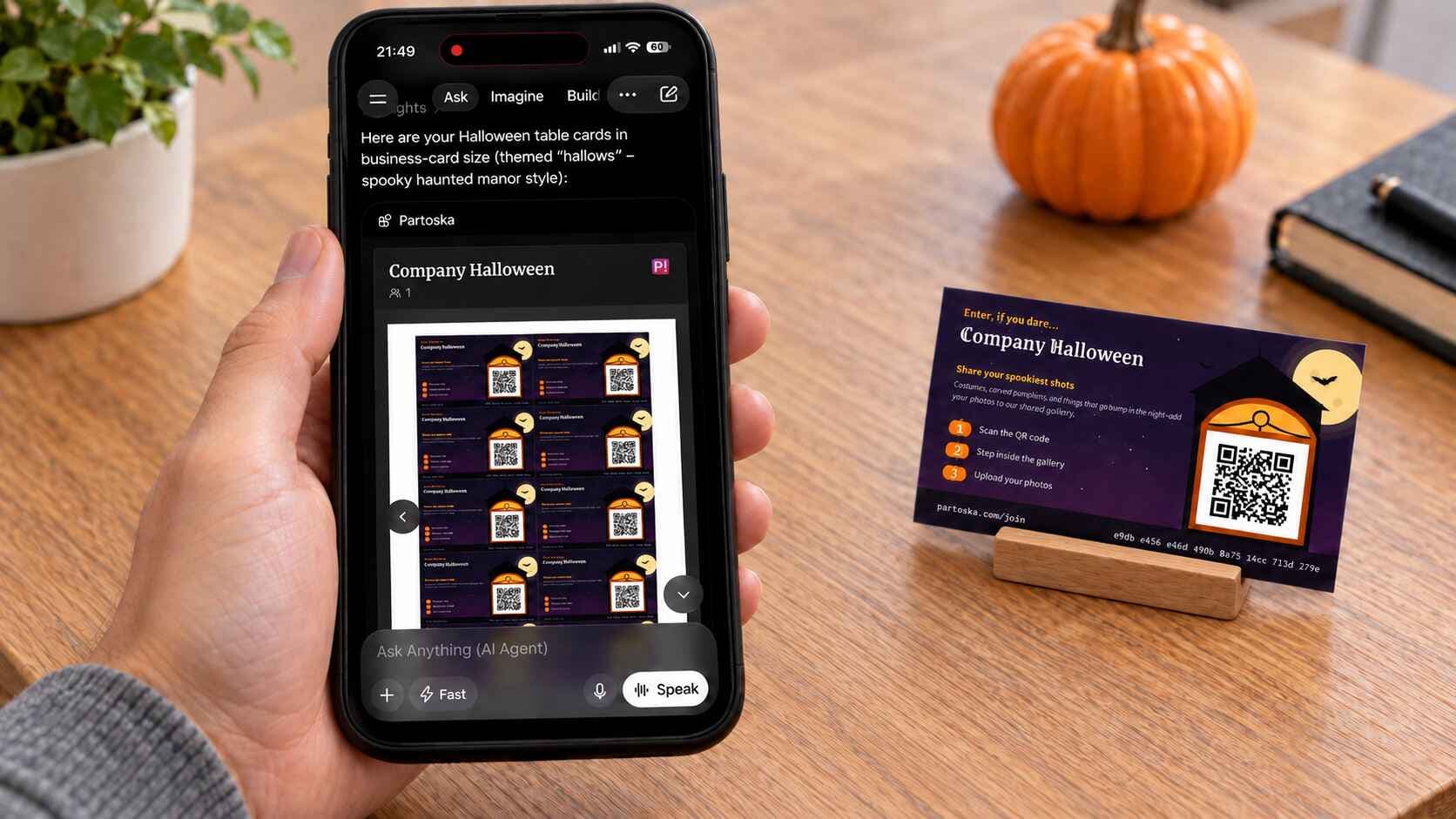
Once the event exists, ask Grok for the cards in the same conversation:
"Could you make us some Halloween QR cards for the tables? Let's use the business-card size. Could you show me the cards and give me a PDF to print?"
Grok put the printable Halloween QR cards in the conversation, along with a PDF to download. Try a printed card with your phone before printing a stack, and check that it opens the right event.
We'd put these beside the food or on the tables where people sit down. After a group photo, point out the nearest card and ask coworkers to add their shots. There are more size and placement suggestions in our printable QR card guide.
Coworkers can upload through their phone browser on Android or iOS, without installing an app. With this private setup, they first need the access approval described above.
You'll find venue and activity ideas in our Halloween party guide.
Give Grok a clear review rule
Once the photos were uploaded, we asked Grok to inspect the pending images:
Could you take a look at every pending photo for me? We'd like to keep alcohol and logos out of the gallery, so please open each image and approve only photos with neither visible.
Alcohol and logos gave Grok something specific to look for. "Pick the good photos" would leave it guessing about whether you meant image quality or what appears in the picture.
Grok needs to open each photo to do this. The list of filenames won't tell it about a bottle on a table or a logo on a sleeve. If it can't view a photo, have it leave that one pending and identify it for you to check.
Grok reviewed the batch we had uploaded when we sent the request; the connection itself doesn't monitor new uploads. When more photos arrive, send another request.
Six approved, six still pending
Grok approved six photos, which then appeared in the guest gallery. The other six remain pending. They're still available for us to inspect, and we can approve any we want to keep. We can also put a photo back on hold if we disagree with an approval.
I'd start with a handful of photos you've already looked through. Include a couple you would hold back and see whether Grok makes the same choices. Any disagreement gives you something concrete to clarify in the next request.
Before using photos in a company newsletter or public post, check the actual pictures yourself. A small logo might be partly hidden, and a glass doesn't necessarily tell you what someone was drinking.
Try it with a small event first
Partoska's free Starter event includes 25 MB of storage and expires after seven days. Use it to test the connection and a few uploads. For a company party, check the storage and duration options on the pricing page, and download the photos you want to keep before the event expires.
FAQ
Does every guest need Grok?
Your coworkers don't need Grok. They'll use the Partoska invitation in their phone browser, while you handle the review from your chat. Private-event guests still need to sign in and have their access approved.
Is the skill required?
You can use the tools once you've connected Partoska. Adding the skill gives Grok more guidance on how to use them, so we've included that optional step in the desktop tutorial.
Can I review the photos myself instead?
Yes. Partoska's web app lets you approve photos yourself, including any Grok left pending, or put an approved photo back on hold.
What about photos uploaded after the review?
They'll wait for approval too, as long as you leave photo approval switched on. When you're ready, ask Grok to review the remaining pending photos, or do it yourself in Partoska. Each uploader can still see their own photos while they wait.
Would this work for our next company dinner?
Yes, you can repeat the process for a dinner or another team event. Choose a card design that suits the occasion and tell Grok what you want to check in the photos. There's nothing Halloween-specific about the review itself.
Does approving a photo make the event public?
No. Photo approval and event visibility are separate settings. Approving a photo in a private event makes it available to people who have access to that event.