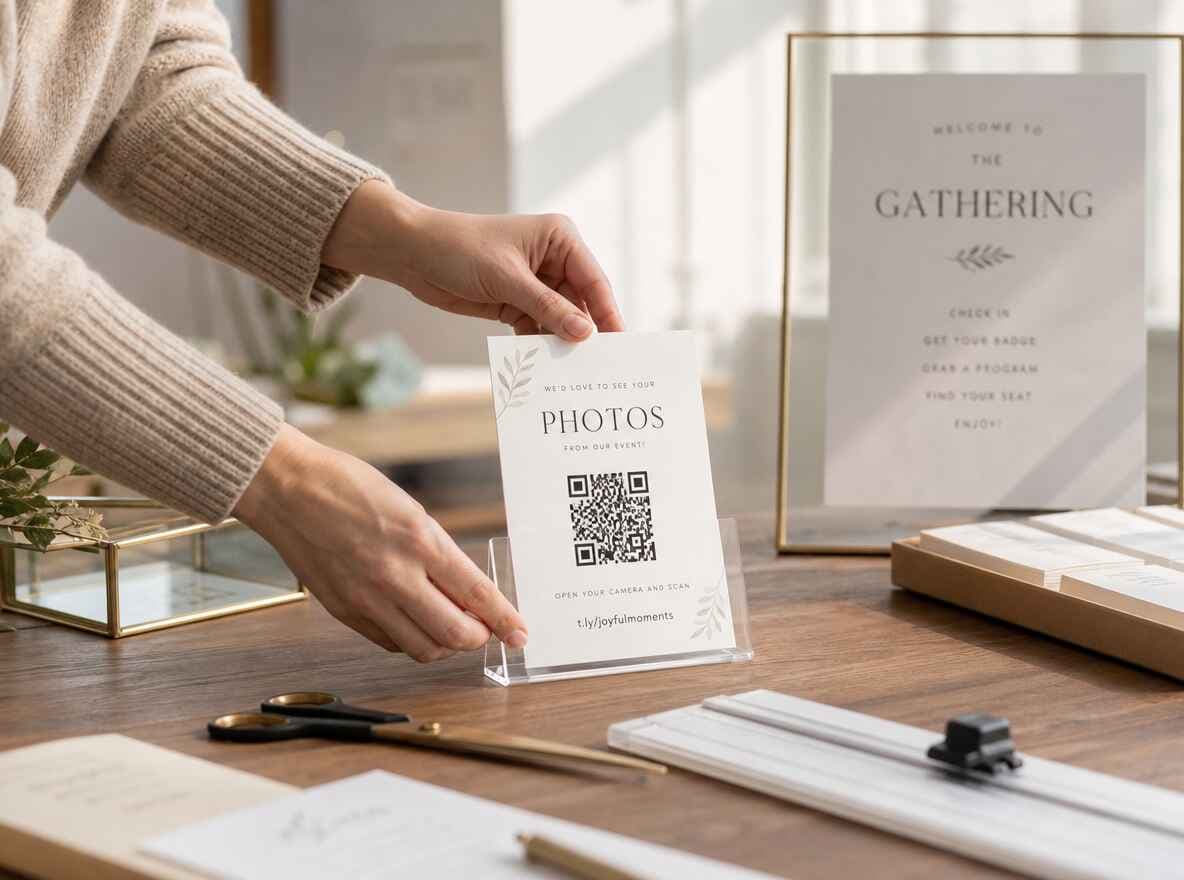
A printable QR code for event photos sounds like a tiny detail until the event starts.
You can have the perfect upload page. You can have a gallery ready. You can even send the link in advance. Then the room fills up, phones come out, people take photos, and nobody remembers where the upload link went.
That is the annoying truth about guest photo collection: the QR code has to be visible at the moment people are taking photos, not later, not buried in an email, and not on one sign by the cloakroom where everyone walked past it while holding a coat and half a conversation.
If guests have to hunt for the upload link, most of the photos stay in camera rolls.
The QR Code Exists. Guests Still Forget.
Most event photo problems look technical at first, but they usually come down to the physical room.
At a wedding, the QR code might be printed once on a welcome board. At a sports tournament, someone tapes it near the entrance and assumes parents saw it. At a company offsite, the link sits in Slack, which is useful for the six people who remember which channel it was in.
The result is familiar: a few uploads, then a lot of chasing. Someone sends five photos through WhatsApp. Someone else promises to make a Drive folder. One guest has the best photo of the night and never sends it because nobody asked at the right time.
This is the same mess behind stop chasing photos. A good event photo QR code fixes the upload path, but a printed card fixes the "will anyone notice it?" part.
What Partoska Generates Now?
Partoska events already come with a QR code and invitation link. The new bit is the printable card around it.
Instead of downloading a naked QR code and building your own sign in Canva, you can generate ready-to-print PDF cards for the event. The QR code and the direct upload link are already embedded, so guests can scan the code or type the short link if scanning is awkward.
There are two practical formats:
- A4 / Letter page: one larger sign for entrances, bars, registration desks, buffet tables, noticeboards, or the DJ booth.
- Business-card layout: ten smaller cards on one page, with cut lines, for tables, place settings, programs, welcome bags, name badges, or handing to volunteers.
It is a small feature with a very boring job: make the upload link hard to miss. If you want to collect event photos from guests, that boring job matters.
Why Cards Work Better Than One Poster?
One poster is fine for some events, and it is also easy to ignore.
Small QR cards spread the prompt across the room. People see them while sitting down, waiting for food, standing in a queue, or talking near the bar. That matters because guests rarely upload photos as a planned task. They upload when the thought is right in front of them.
For QR code photo sharing, placement beats clever wording. A plain card on every second table will usually outperform one beautiful sign in the corner.
The business-card format gives you proper cut lines, which makes scissors or a paper trimmer much less annoying. Print one sheet, cut along the guides, then scatter the cards where people naturally pause. If you want them to stand upright, slide them into small table stands or use simple clip holders.
Where to Put QR Code Cards?
Good placement depends on the event, but the rule is the same: put the card where guests already stop.
For seated dinners, QR code table cards are usually the safest bet: put them near the menu, next to the place cards, or anywhere guests look before the food arrives. Small acrylic stands, menu holders, or clip stands work well for the business-card version because the code stays visible instead of lying flat under napkins. For weddings, add one at the guest book and one near the bar; the wedding-specific setup guide goes deeper on QR codes for wedding photos.
For sports clubs, the scorer's table, snack counter, entrance, or tournament noticeboard usually works better than the locker room door. Parents have their phones out already, and the card gives them one clear answer to "where should I send these?" The same logic applies to basketball club photos.
For galas and balls, table cards are the obvious choice. A larger A4 sign near the cloakroom, raffle table, or photo booth helps too. We covered the broader event workflow in gala photos in one place, and printable cards remove one more bit of organizer improvisation.
For company events, put the card near the registration desk and coffee area, then share the link in the team chat. Physical card plus digital link is better than choosing only one.
What the Card Should Say?
The card doesn't need poetry; it needs one direct request.
Try something like:
- "Share your event photos."
- "Scan, open the gallery, upload your photos."
- "Got a good photo? Add it here."
- "Help us collect the best moments from today."
Partoska's printable QR code cards already include a simple three-step flow: scan the QR code, open the gallery, upload your photos. That is enough. Guests don't need a paragraph about the photo collection process while holding a drink and looking for their table.
If your crowd needs a little nudge, add a verbal reminder. Ask the MC, DJ, coach, host, or team lead to say one line during the event:
If you take photos today, scan the QR card on the table and upload them there.
That sentence does more work than a long explanation.
No App Is the Real Shortcut
Printed cards only help if the upload flow respects the guest's patience.
If scanning the code leads to an app download, a new account, a password reset, or a permission puzzle, people drop out. They meant to be helpful, not to become your event's unpaid IT department.
With Partoska, guests scan the card and upload in the browser. It works across phones and computers, so mixed iPhone and Android groups are not a special project. That no-app flow is the part worth checking before you print anything; the features page has the current details.
The best photo upload QR code setup is boring in the right way: scan, open, upload, done.
Let Your AI Assistant Handle the Admin Bit
Most organizers will generate the PDF in the web app, print it, and move on with their day. Good. That is the normal path.
If you run recurring events, bigger operations, or a club calendar that keeps repeating every weekend, the same printable-card workflow can be handed to an AI assistant. Partoska's MCP support and REST API let an AI client work with your events instead of making you click through the same setup over and over.
In practice, that means you can ask your assistant for things like:
- "Create events for Saturday's tournament and download the QR card PDFs."
- "Give me the Letter-size sign for the annual gala."
- "Download the 10-up business-card sheet for next week's home match."
- "Find the right event and send me the printable QR card."
The assistant can select the event, choose the card PDF, and download it for printing. For one birthday party, that would be overkill. For a sports club, venue, agency, school, or company that repeats the same setup every month, it saves the boring clicks.
If you want the more technical version, the terminal and AI agent guide explains how Partoska fits into scripted and assistant-driven workflows.
Small Cards Also Make Moderation Easier
Printed cards can make photo collection feel open, but the organizer still needs control.
That is especially true at children's events, club matches, private parties, and company gatherings where not every upload should become public by default. Partoska keeps the event organizer in charge of the gallery, so you can collect first and decide what gets shared afterward.
You can also use favorite marks as a light engagement trick. Ask people to upload during the event, then let them mark favorites later for "photo of the night", "moment of the match", or "best guest photo." It gives guests a reason to return to the gallery, and it gives the organizer a rough shortlist without scrolling through everything twice.
How Many Cards Should You Print?
Print more than feels necessary.
For a small dinner, one A4 sign plus a few table cards may be enough. For a wedding, gala, or club tournament, one card per table and a larger sign at the entrance is a safer bet. If the venue already has menu stands, badge clips, or little table holders, use them for the business-card cards. For an event with movement, like a sports day or company offsite, put cards where people pause between activities.
If the card is visible in three places, guests can miss it twice and still find it.
And do test the QR code after printing. Scan the actual paper, not just the PDF preview. Bad lighting, glossy paper, tiny print, and a tired printer can all make a technically correct QR code annoying to use.
What About Price?
You can test Partoska on the free starter tier, which is useful for small events and quick trials. If the printed cards do their job and people upload a lot of photos, you may need a paid plan for a larger event.
That is a decent trade. Paying for one clean collection point is usually cheaper than spending the next week asking people to resend full-quality files, fix Drive permissions, or dig through group chats. Current plans are on the pricing page.
Print the Prompt Before the Event Starts
The best time to ask for guest photos is while guests are still taking them.
Partoska's printable QR code cards turn the upload link into something people can see, scan, and use in the room. A4 or Letter signs cover the obvious locations. Business-card sheets give you ten small prompts per page, ready to cut and place wherever the event actually happens.
Create the event, print the cards, put them where people pause, and let the photos arrive while the day is still alive.
FAQ
How do I print a QR code for event photos?
Create an event in Partoska, generate the printable QR card PDF, and print either the A4/Letter sign or the 10-card sheet. The card includes both the QR code and the invitation link.
What is the best size for an event photo QR code card?
Use A4 or Letter for a visible sign at entrances, bars, registration desks, and noticeboards. Use business-card size for tables, programs, badges, welcome bags, and volunteers.
Where should I put QR code cards at an event?
Put them where guests naturally stop: tables, bars, entrances, snack counters, guest books, registration desks, photo booths, or tournament noticeboards. Hidden QR codes get ignored.
Do guests need an app to upload photos?
No. With Partoska, guests scan the QR code and upload in the browser. That makes the printed card useful for mixed groups with different phones.
Should I use a QR code or share the upload link?
Use both. The QR code is best in the room. The link is useful in chats, emails, programs, and follow-up reminders. Partoska's printable cards include both.
Can an AI assistant download the printable QR card for me?
Yes. Partoska supports MCP and a REST API, so an AI client can work with your events, choose the right printable card PDF, and download it for printing when your workflow allows it.
Can I use the same printable card for a recurring event?
Yes, if you want all uploads in the same event gallery. For separate matches, parties, or sessions, create separate events and print the matching card for each one.