How to Collect Photos from a Firefighters' Ball
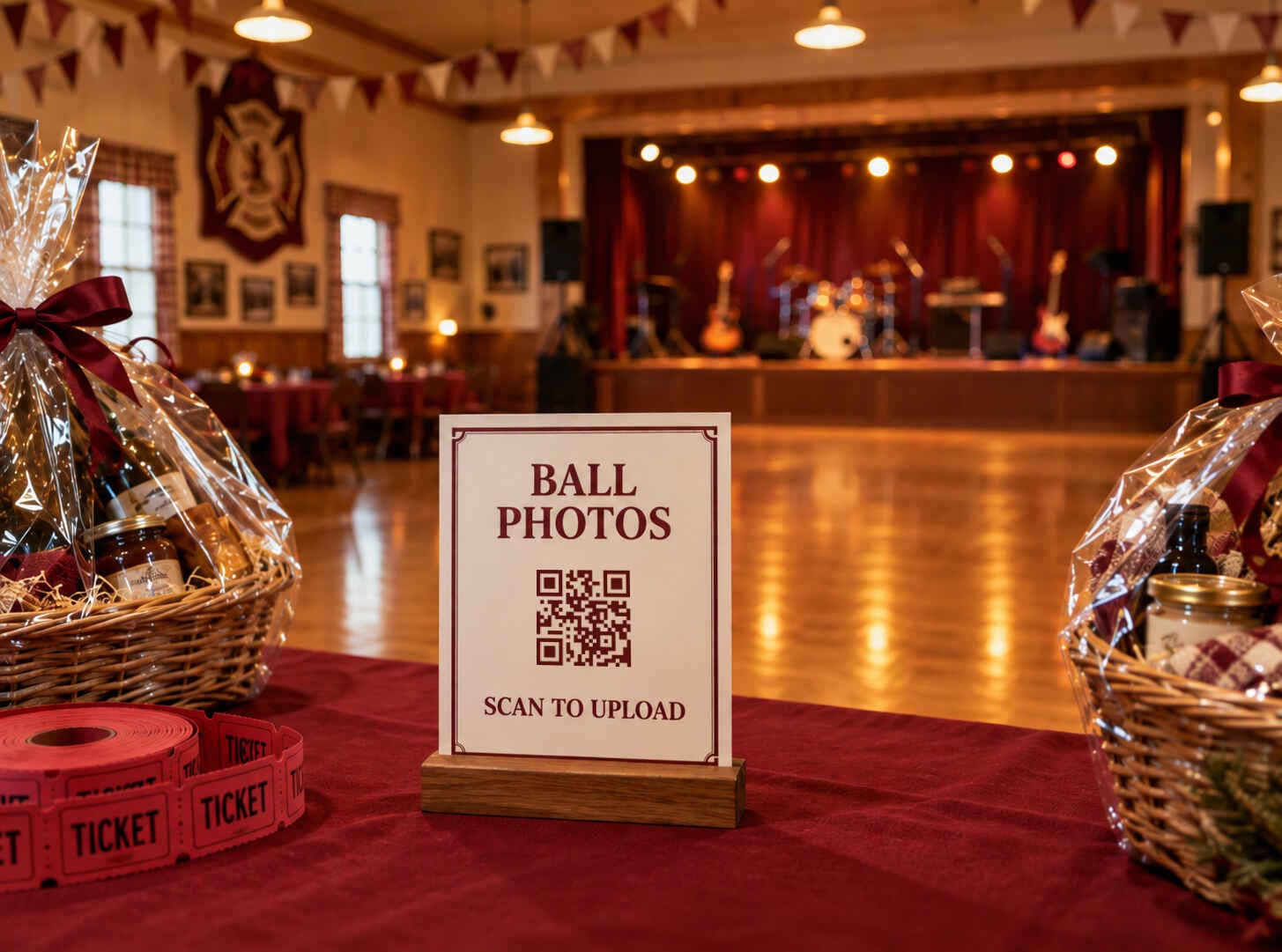
Put firefighters' ball photos on the planning agenda a few days before the event, while you're still collecting raffle prizes and confirming the programme with the band. That leaves time to set up the gallery and test a printed QR card before making copies for the tables.
Bring the printed cards when you set up the hall and put one on each table. Guests can scan them and contribute photos while they're sitting down between dances. Afterwards, the committee can choose photographs for the department's website without spending a week asking who took them.
Partoska gives you a shared gallery with ready-made cards to print. You can check guest uploads before sharing them and let the band introduce a competition for the best photo.
Set up the gallery while you're planning the ball
Sign in to Partoska and create an event with a name guests will recognise. Include the year so you can tell this ball apart from the next one.
For guests to upload without creating an account, choose a public event. Anyone with its invitation link or QR code can then open the gallery and add photos in their phone's browser. They don't need an app, and mixed iPhone and Android tables can use the same code.
Switch moderation to "Require approval" before sharing the link. Public access and photo approval are separate settings: you can let guests join easily while still checking what appears in the gallery.
Ask another volunteer to scan the QR code and upload a photo from their own phone. Approve it from your organiser account. Run this test while guest uploads are open; testing only from your own account won't show you what a guest has to do.
If you've hired a photographer, keep their plans in place. Guest photos add the view from individual tables and conversations in the corridor, alongside the work you've hired a professional to do.
The printable cards are already designed
You don't need to make a poster from a blank page. Partoska has a Velvet card design specifically for balls and galas, with burgundy stationery and dance imagery. It includes your event name, its QR code and short instructions asking guests to add their photographs.
Open "Print QR cards", choose Velvet, and download the PDF. There are two useful layouts:
- A single A4 or US Letter sign for the entrance or raffle table.
- A sheet of ten business-size cards to cut apart and put in table stands.
Print one test sheet first and scan a card before making the whole batch. Leave time to cut the small cards apart and pack them with the table decorations. If you have access to the hall beforehand, try a card under its lighting too.
When setting up, put a small card where people can reach it without leaning across dinner. A larger sign beside the raffle prizes gives guests another chance to notice it while they're waiting.
Our printable QR card guide has more placement ideas if your evening spreads across several rooms.
You can prepare it in ChatGPT too
If you're already using ChatGPT to plan the evening, connect the Partoska plugin and sign in to your Partoska account. You can ask it to create the event and prepare the cards. For example:
Create a Partoska event called "Firefighters' Ball 2026". Make it public and require approval for photos. Show me the Velvet QR card, then give me a PDF with ten cards on an A4 sheet.
Check the event's upload dates and expiry before printing. If you prefer US Letter, ask for that paper size instead. Our ChatGPT setup guide walks through connecting Partoska.
Guests still use the QR code and their browser. They don't need ChatGPT, and you can return to the same event in the Partoska web app whenever you want.
Let the band introduce a photo competition
Tell the band about the gallery before their first set and give them a short announcement. The singer will have enough requests to deal with once the dancing starts.
For a competition, you could hand them this:
Got a good photo tonight? Scan the card on your table and add it to our album. Upload by eleven and the committee will choose the moment of the night before the last set. The winner gets two tickets to next year's ball.
Choose a prize you can provide and a deadline that fits the programme. Let the committee compare the approved entries on a phone. Once you've chosen, ask whoever took the winning picture to come up for their prize.
For a guests' choice award, use the stars that mark favourite photos. Guests need to sign in to star a photo, even though they can upload to your public event without an account. At the announced judging time, sort the gallery by "Favorites (Most First)" and record the winner yourself. Settle ties with a committee vote.
Keep the brief friendly: a great dance-floor moment or someone delighted with their raffle prize. A competition for the most embarrassing picture gives people the wrong assignment.
Someone needs to approve the photos
With moderation on, guest uploads wait for you or a moderator to approve them before other guests see them. People can still see their own uploads while they wait.
Agree who will check the queue during breaks. If you're also selling raffle tickets and dealing with the caterer, give a second volunteer moderator access.
Keep the laughing couple mid-dance, even if the bow tie has slipped. Leave out the close-up of someone who has had far too much to drink. With approval turned on, you can make that call before other guests see the picture.
Tell guests that uploads need approval so a short wait doesn't look like a failed upload. If you're running the competition, leave time between its upload deadline and judging to review the last entries.
Get a set of photos to the website editor
After the ball, finish reviewing the uploads and choose the photos you'd want to show someone who couldn't come. Remember the volunteers setting up and the band, as well as the dance floor. Those pictures can be useful when you thank supporters or advertise next year's event.
Partoska exports approved photos at their original quality. While signed in, you can download a ZIP, export to Google Drive, or export to OneDrive. For either cloud option, connect the account you want to export to first. You can export the approved collection or limit it to photos you've marked as favourites.
Keep an archive of the approved collection for the department and make a smaller selection for the person who updates its website. A folder named "Firefighters' Ball 2026 - website selection", accompanied by a short account of the evening, is an easy handover. If the town publishes community news, send its editor the selection too.
The editor uploads the chosen files to the website. Agree which photos are suitable for public use before handing them over; approving a picture for the guest gallery doesn't mean you necessarily want it on the town's homepage.
Export before the Partoska event expires, and keep the long-term copy in storage the organisation controls. Next year's committee should be able to find it.
Try a few photos before committing
The free Starter package gives you 25 MB for seven days, enough to try the upload and approval process with a few photos. For the ball itself, choose a package with enough storage and time for your preparations and the uploads afterwards. Current options are on the pricing page.
Start with a test card for the next committee meeting. Whoever scans it can be your first guest.
FAQ
Do guests need a Partoska account?
For a public event, they can upload and view photos through the invitation link without an account. Starring photos and exporting a ZIP or cloud copy require sign-in. For a private event, guests must sign in and request access, which you approve before they can join.
Can I print the cards on an ordinary printer?
Yes. Download the card PDF and print it on your chosen paper size. Print at the intended size so the small cards remain readable, and scan a paper copy before making the rest.
Can we stop drunken photos appearing in the album?
Turn on "Require approval" before guests start uploading. You or a moderator then decides what the other guests see. Someone still needs to review the submissions.
Do we have to use votes for the photo competition?
No. Having the committee choose a winner from approved photos is simpler if guests don't want to sign in. Announce the judging method and prize when the band introduces the competition.
Can we save just the photos we want for our website?
Yes. Mark your selection as favourites, then use the favourites export to ZIP, Google Drive or OneDrive. These exports include approved photos. Your website editor can then publish the selection.
Can people upload the next day?
Yes, if you leave the guest upload window open and the event still has capacity and hasn't expired. Share the invitation link afterwards so guests can add photos once they're home.